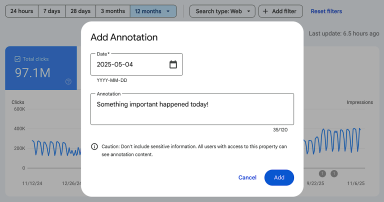
Google Search Console has rolled out a significant update, introducing custom annotations directly within its performance reports. This new feature empowers webmasters and SEO professionals to add contextual notes to their traffic data charts, making it easier to pinpoint when specific site changes or external events occurred and how they impacted search performance.
The feature allows users to mark specific dates with notes, explaining various site changes or external events that may have influenced search performance metrics.
What the Feature Does
Custom annotations appear as distinct markers directly on Search Console charts. Google's announcement highlights several common use cases for this new functionality, including:
- Infrastructure changes: Documenting server migrations, platform updates, or technical adjustments.
- SEO work: Noting changes to site structure, keyword targeting, or link-building campaigns.
- Content strategy shifts: Recording major content updates, new article series, or content removals.
- External events: Marking holidays, industry news, or other business-performance-affecting occurrences.
It's important to note that all annotations are visible to anyone with access to a particular Search Console property. Due to this shared visibility, Google recommends avoiding the inclusion of sensitive personal information within the notes.
Why This Matters for Web Performance
Historically, connecting fluctuations in traffic data with specific actions taken weeks or months prior often required maintaining separate documentation outside of Search Console. This process could be cumbersome and prone to inconsistencies.
Custom annotations fundamentally change this by creating an integrated change log directly within the performance reports that users already rely on. For those managing multiple properties or working within larger teams, annotations provide a shared, centralized record of releases, migrations, and campaigns. This eliminates the need to cross-reference external spreadsheets, project management tools, or disparate notes, streamlining collaboration and data interpretation.
How to Use Custom Annotations
Adding an annotation is a straightforward process:
- Right-click anywhere on a performance chart within Search Console.
- Select "Add annotation" from the context menu.
- Choose the relevant date for your annotation.
- Enter your note, up to a maximum of 120 characters.
Once added, the note appears directly on the chart as a visual reference point, displayed alongside key metrics such as clicks, impressions, or average position. This immediate visual context helps users quickly understand the potential impact of documented events on their search performance trends.
Custom annotations are now fully integrated into Search Console performance reports and are accessible via the chart's context menu.